

Unlock BitLocker drives on your Mac
Watch CrossDriver unlock a BitLocker drive on a Mac: it recognises the encryption, you enter the password, then browse, preview and write files. Unlocking is a Pro feature, free to try for 7 days.
 CrossDriver NTFS
- 5 steps · Unlocking is a Pro feature
Steps in this video
Connect the encrypted disk
Open CrossDriver, then plug in your BitLocker disk. CrossDriver recognizes the BitLocker encryption automatically. Unlocking is a Pro feature. Pro is free to try for 7 days.
Unlock with your password
Click the box and type the BitLocker password. Click “Unlock”. The disk opens in a few seconds.
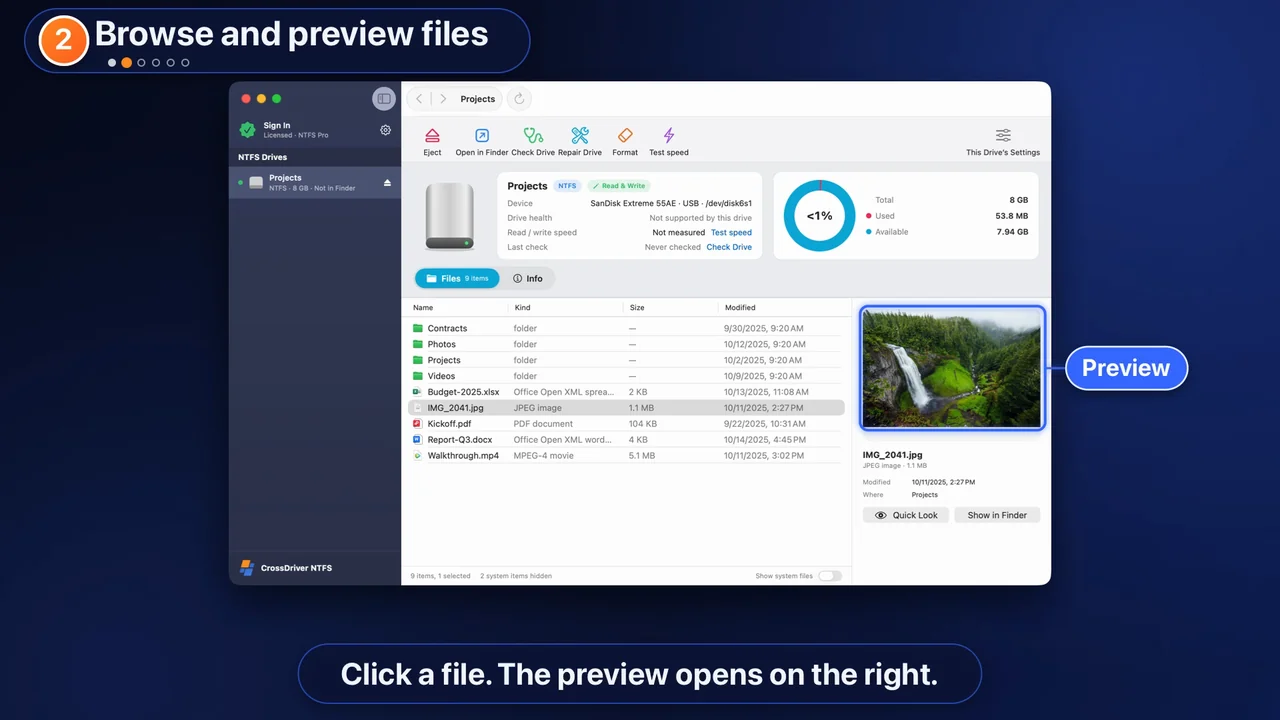
Browse and preview files
Browse it like any disk. Double-click a folder to see inside. Click the disk name in the path to go back. Click a file. The preview opens on the right.
Write a file
Once unlocked, you can write to the disk. New files show up in the list.
Eject the disk
Click “Eject” before you unplug the cable.
CrossDriver NTFS
Read and write Windows external drives and USB flash drives directly on your Mac.
Free to download. Pro features are free to try for 7 days.
 CrossDriver Ext4