CrossDriver Data RecoveryFree scan & preview · macOS 12 or later · Apple silicon & Intel

Deleted or formatted a USB stick or SD card?
Get your files back on a Mac

CrossDriver Data Recovery is a Mac app. Plug in a USB stick, SD card, or external drive and choose how to recover: deleted files come back with their original names and folders; formatted disks, or disks that ask to be formatted, get a block-by-block deep scan that finds photos, videos, documents, and more by type; if the partition table is damaged, it finds the original partitions and opens them directly. Strictly read-only. Preview for free, and recover once you’re satisfied.

Read-only, never writes to your disksNo kernel extensionFiles never uploaded

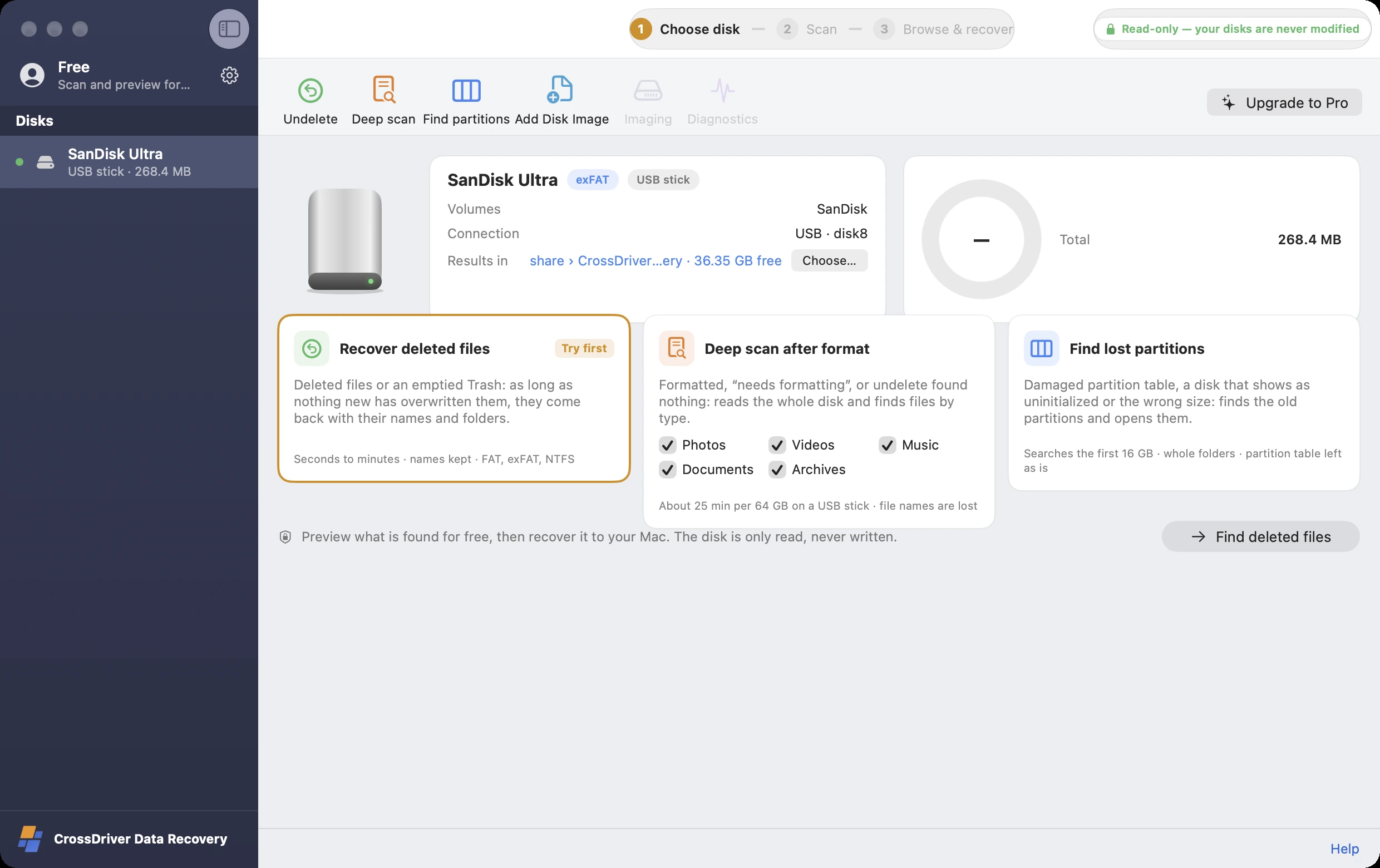
CrossDriver Data Recovery (Data recovery for Mac (USB drive, SD card, external drive)) screenshot: Shows up when plugged in: USB sticks, SD cards, external drives; Deleted: recovered with original names in seconds to minutes; Formatted: deep scan by file type; Lost partition: found and opened directly; Read-only throughout
1Shows up when plugged in: USB sticks, SD cards, external drives
2Deleted: recovered with original names in seconds to minutes
3Formatted: deep scan by file type
4Lost partition: found and opened directly
5Read-only throughout
When you need it

Files gone? They’re most likely still on the disk

Deleting and quick formatting only erase the “index”; the file contents stay where they were until new data overwrites them. The sooner you scan, the more you get back.

🗑

Deleted, Trash emptied

Files deleted from a USB stick or external drive, and they’re not in your Mac’s Trash anymore.

💾

Formatted by mistake

You clicked Format, or a camera or dash cam formatted the card.

⚠️

Asks to be formatted

As soon as you plug it in, you’re told it’s “not readable” or “needs to be formatted,” and it won’t open.

🧩

Partition gone

The disk shows as “uninitialized” or the wrong size, and the original partition has disappeared.

Hold on

Files missing? Do this first

✋

Stop writing to the disk

New files can overwrite exactly the ones you deleted. Stop taking photos, copying, and downloading to it.

✋

Don't click "Format" or "Initialize"

When asked to format, click “Cancel” on Windows or “Ignore” on a Mac.

✋

Don’t repair first

chkdsk and Disk Utility’s First Aid rewrite directory records. Get your files back first.

🔇

Strange noises? Power off first

If the drive clicks, won’t spin up, or keeps disconnecting, it has a physical fault. Take it to a professional data recovery service.

How it works

Three steps, no technical skills needed

Have another disk (or your Mac’s internal disk) with enough free space for the recovered files.

  1. 1

    Select disks

    Plug in the USB stick, SD card, or external drive, and it appears in the sidebar automatically.

  2. 2

    Choose a recovery method

    For deleted files, choose “Undelete”; for a formatted disk, choose “Deep scan” and select file types; for a missing partition, choose “Find partitions.”

  3. 3

    Preview and recover

    When the scan finishes, the files it found open automatically. Preview photos, videos, and documents for free, and once you’ve confirmed everything you need is there, recover it to your Mac.

01Undelete

Deleted files come back with their original names and folders

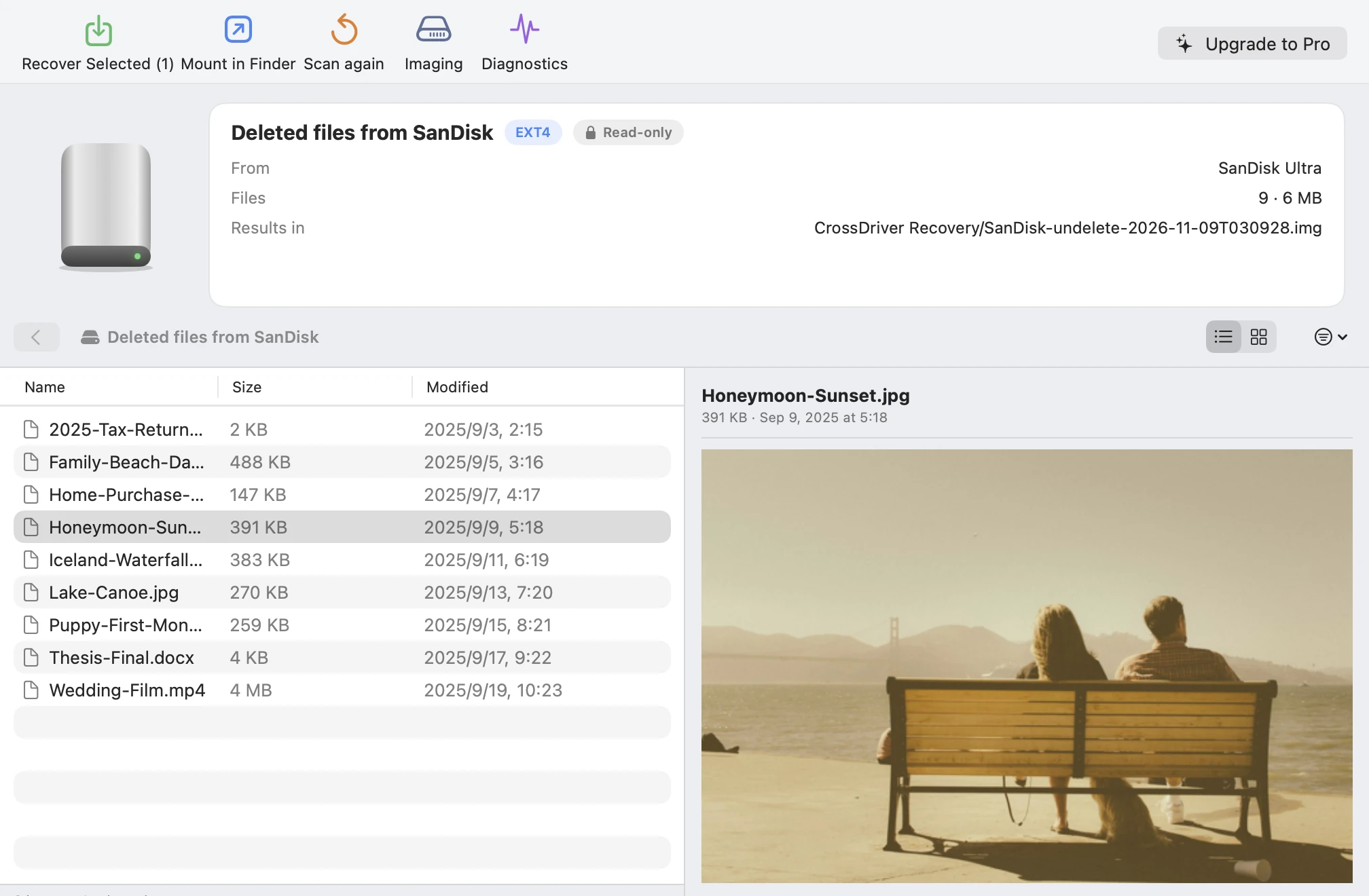
On FAT32, exFAT, and NTFS USB sticks, SD cards, and external drives, deleted files that haven’t been overwritten can be recovered with their original names and folders, usually in seconds to minutes.

  • 1File names and folders kept intact, non-English names included
  • 2Free preview of photos, videos, PDFs, and Office documents
  • 3Select files and recover them to your Mac in one click
CrossDriver Data Recovery (Data recovery for Mac (USB drive, SD card, external drive)) screenshot: Original file names, in any language; Free preview; Recover Selected
1Original file names, in any language
2Free preview
3Recover Selected
02Deep scan

Formatted or won’t open? Deep-scan it block by block

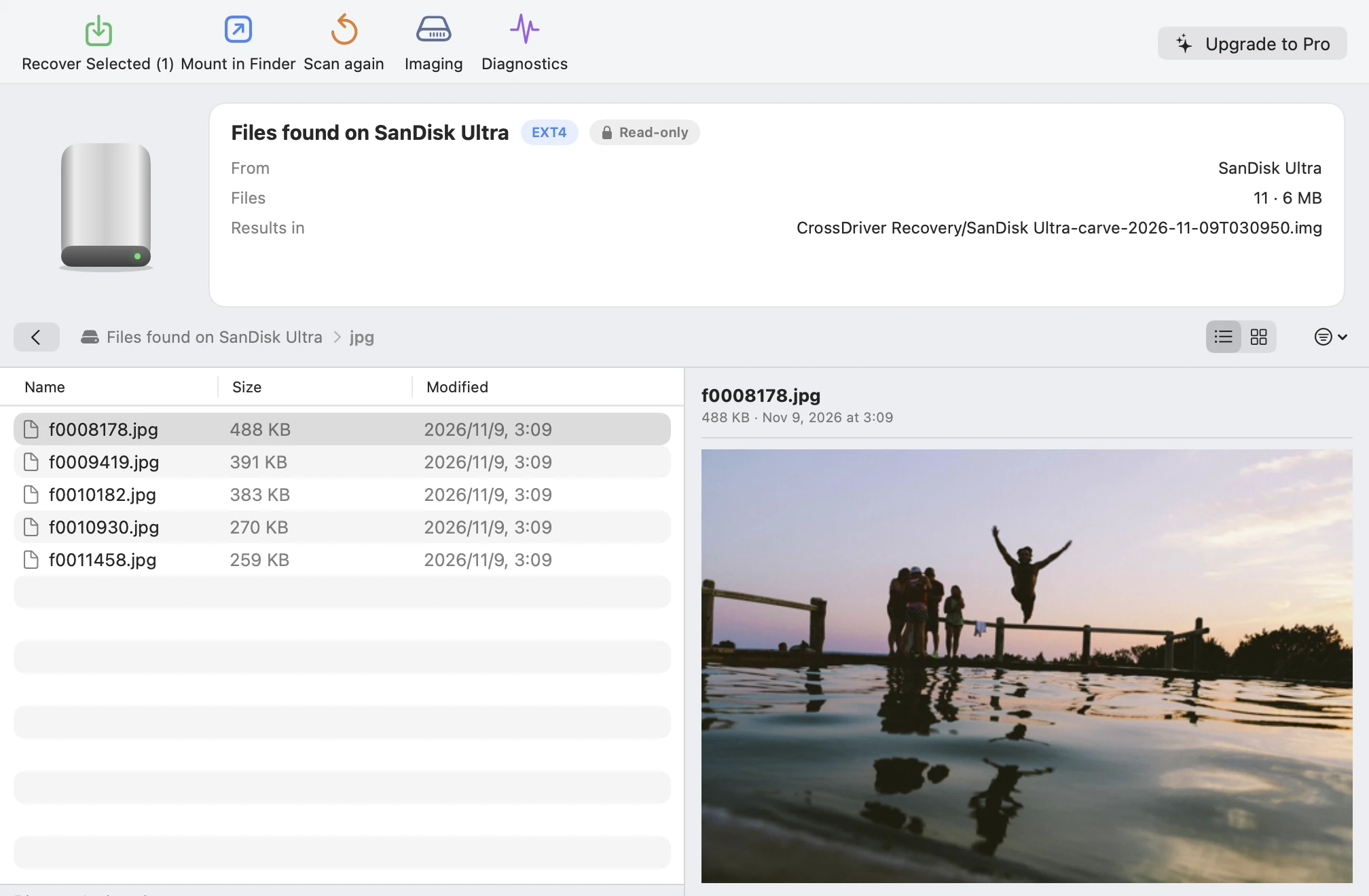
After a quick format, when a disk asks to be formatted, or when deleted files can no longer be found, a deep scan reads the entire disk and finds photos, videos, and documents by the signatures in their contents.

  • 1Choose types: photos, videos, music, documents, archives
  • 2Found files are sorted into folders by type and can be previewed right away
  • 3Stops automatically when the workspace runs low on space, so it never fills up your Mac

A deep scan can’t restore original file names or folders; files are named by number. Speed depends on the disk: about 25 minutes for a 64 GB USB stick.

CrossDriver Data Recovery (Data recovery for Mac (USB drive, SD card, external drive)) screenshot: Folders by file type; Instant preview; Numbered file names
1Folders by file type
2Instant preview
3Numbered file names
03Find partitions

Partition gone? Find it and open it directly

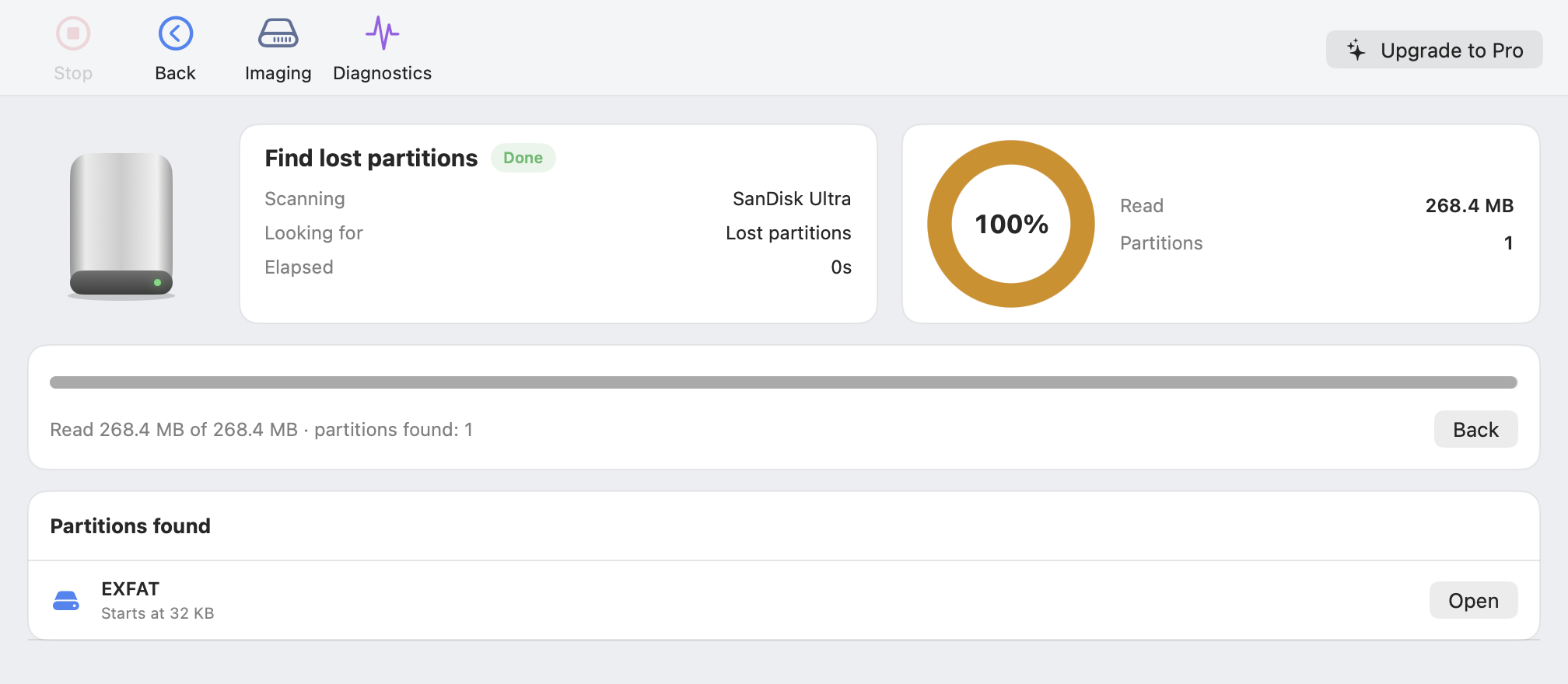
When the partition table is damaged, or the disk shows as “uninitialized” or the wrong size, Data Recovery searches the disk for the original file systems. Click “Open” on one it finds, and all your original folders are there.

  • 1Detects FAT32, exFAT, NTFS, Ext4, XFS, and Btrfs
  • 2Rebuilds partitions in memory only, without rewriting the partition table on disk
  • 3Once opened, browse and recover like any normal disk
CrossDriver Data Recovery (Data recovery for Mac (USB drive, SD card, external drive)) screenshot: Search progress; Partitions found; Open directly
1Search progress
2Partitions found
3Open directly
04Read-only throughout

A recovery tool
must never write to your disk

Data Recovery reads disks inside an isolated, lightweight Linux environment, and disks are handed to it read-only. Recovered files are written to another disk you choose.

🔒 Read-only access

On the Mac

The disk is passed to the recovery engine as a read-only device, so writing is blocked at the system level.

🔒 Results saved elsewhere

Workspace

Scan results are saved to a folder you choose, never back to the source disk. It stops automatically when space runs low.

🔒 Partition table untouched

Find partitions

Found partitions are opened in memory only; the partition table on disk stays exactly as it was.

No kernel extension, no Recovery Mode, and no reduction in your Mac's system security.

What's supported

What can be recovered

What it can do, and what it can’t, spelled out. Not sure? Run a free scan first: if you can see a file in the preview, you can recover it.

Undelete (with original names)Deep scan after formattingFind partitions
FAT32 (USB sticks, SD cards)✓✓✓
exFAT (large USB sticks, SDXC cards, cameras)✓✓✓
NTFS (Windows external drives)✓✓✓
Ext4, XFS, Btrfs (Linux, Raspberry Pi)—✓✓
APFS, Mac OS Extended (HFS+)—✓—
Data overwritten by new files———
Physical disk failure (strange noises, not detected)———

A deep scan doesn’t depend on the file system; it identifies common photo, video, music, document, and archive formats by their contents. For a disk with bad sectors, copy it with “Imaging” first, then scan the image.

Works with

Which Macs and disks are supported

Supported Macs

Models
MacBook Air, MacBook Pro, iMac, Mac mini, Mac Studio, Mac Pro
Chip
Apple silicon (the entire M1–M6 families, including Pro, Max and Ultra) and Intel processors
System
macOS 12 Monterey, 13 Ventura, 14 Sonoma, 15 Sequoia, 26 Tahoe and later

Supported disks

Type
USB sticks, SD / microSD / CF cards, external hard drives, portable SSDs, and SATA / NVMe drives in enclosures
Connection
USB-A, USB-C, Thunderbolt, card readers, drive enclosures, drive docks
Brands
Works with every brand, such as Seagate, WD (Western Digital), Toshiba, Samsung T7 / T9, SanDisk, Kingston, Lexar, LaCie, UGREEN, ORICO and more

Common uses

Cameras and drones
Photos and videos deleted from camera, action cam, or drone memory cards, or a card that was formatted
Dash cams
Get important clips back before the dash cam records over them
USB flash drives & external drives
Documents deleted by mistake, disks formatted by accident, disks that ask to be formatted

RAID drives taken out of a NAS have to be read together; use NAS Rescue for those.

05Pricing

See it first, then pay

Scanning, finding partitions, and previewing are always free. Upgrade to recover to your Mac once you’ve confirmed your files are there.

Free

US$0

  • Undelete, deep scan, find partitions
  • Browse all found files
  • Preview photos, videos & documents
  • Disk health check & diagnostics
Free Download
Recommended

Data Recovery Pro

US$ — Lifetime license

  • Everything in Free
  • Unlimited, verified file recovery to your Mac
  • Open found files in Finder
  • Image failing disks · Unlock encrypted volumes
Coming soon

NAS Rescue Pro

US$69.95 Lifetime license · 1 year US$39.95

  • Everything in Data Recovery Pro
  • RAID / LVM / ZFS from Synology, QNAP, and other NAS
  • One license, two apps
Learn about NAS Rescue

Each license covers 1 Mac and can be deactivated in the app to move to another. Works offline, no account required. After-sales & refund policy.

Data never leaves your Mac

Your files stay on your Mac

0

bytes written to the source disk

The source disk stays read-only; scan results are written to another disk you choose.

0

bytes uploaded

File names, paths and contents never leave your Mac, and everything works offline.

20

interface languages

20 languages, including 简体中文, 繁體中文, English, 日本語, 한국어, Deutsch, and Français. Native on Apple silicon and Intel.

FAQ

Q&A

Can I recover files deleted from a USB stick?

Usually, yes. Deleting only erases the directory entry; the file contents remain until new data overwrites them. Stop writing to the USB stick and scan it with “Undelete.” On FAT32, exFAT, and NTFS USB sticks, files come back with their original names and folders.

I emptied the Trash on my Mac. Can I get the files back?

For files on a USB stick, SD card, or external drive, yes: use “Undelete” after the Trash is emptied. Your Mac’s internal APFS disk uses encryption and TRIM, so deleted files there are very hard to recover; restore from a Time Machine backup instead.

Can I recover files from a formatted USB stick or SD card?

After a quick format, usually yes: “Deep scan” reads the whole disk block by block and recovers photos, videos, documents, and more by type, though original file names and folders can’t be restored. A full format (with “Quick Format” unchecked on Windows) fills the disk with zeros, and then nothing can be recovered.

My camera’s SD card was formatted. Can the photos be recovered?

A camera’s “Format” is usually a quick format, so the photos are most likely still there. Stop shooting on the card, then run a deep scan with “Photos” and “Videos” selected. JPG, HEIC, common RAW formats, MP4, and MOV are all recognized.

It says “needs to be formatted” when I plug it in. What should I do?

Don’t format it yet. Scan it read-only with “Find lost partitions” or “Deep scan,” recover whatever files you can, and only then consider formatting. For detailed steps, see USB drive says it needs to be formatted.

How long does a scan take?

Undelete usually takes seconds to minutes. A deep scan reads the whole disk, so it depends on capacity and speed: about 25 minutes for a 64 GB USB stick. Find partitions searches the first 16 GB of the disk first.

Where are found files stored, and how much space do they take?

In the workspace you choose (by default, the app’s own folder). We recommend another disk with enough free space. A deep scan uses as much space as it finds, up to nearly the size of the source disk; if space runs low, it stops automatically, and you can still browse the files found so far.

How is it different from NAS Rescue?

Data Recovery is built for single USB sticks, SD cards, and external drives, and costs less. NAS Rescue can also rebuild RAID, LVM, and ZFS from Synology, QNAP, and other NAS, and includes everything in Data Recovery: buy NAS Rescue Pro, and Data Recovery is unlocked too.

Could it damage my disk?

No. The source disk stays read-only throughout. Found partitions are opened in memory only, without rewriting the partition table, and recovered files are written to another disk you choose.

Do I need to install a kernel extension or disable SIP?

No. Data Recovery uses the Virtualization framework built into macOS to read disks inside an isolated, lightweight Linux environment.

When should I go to a professional?

If a drive makes strange noises, won’t spin up, or keeps disconnecting, or if no computer detects it at all or its capacity shows as 0, it most likely has a physical fault. Stop powering it and contact a professional data recovery service.

If your files haven’t been overwritten, there’s still a chance

Download Data Recovery and run a free scan to see whether your files are still there.

Download for Mac — Free Scan & Preview

macOS 12 or later · Apple silicon & Intel · Privacy Policy