CrossDriver NAS RescueFree scan & preview · macOS 12 or later · Apple silicon & Intel

NAS died? Plug its drives into your Mac
and get every file back

NAS Rescue is NAS data recovery software for the Mac: take the drives out of a Synology, QNAP, UGREEN, Unraid, or TrueNAS box and connect them to your Mac. No Windows PC, no Ubuntu USB stick, not a single command: it rebuilds RAID, LVM, Btrfs, and ZFS automatically, even with a drive missing. Everything stays read-only, and you see your files for free before deciding to recover them.

Read-only, never writes to your disksNo kernel extensionFiles never uploaded

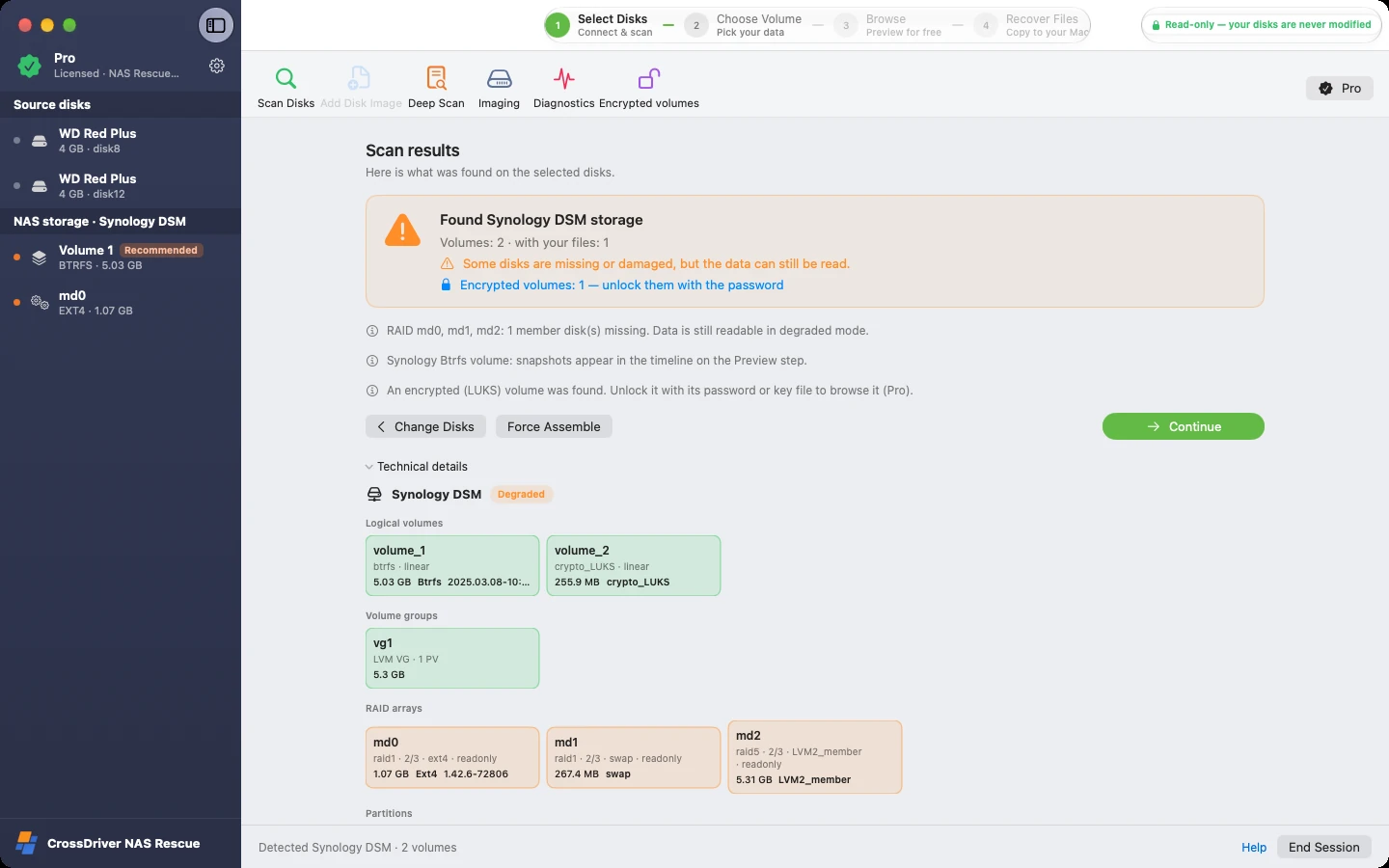
CrossDriver NAS Rescue (Synology / QNAP NAS data recovery for Mac) screenshot: Read-only throughout; Four-step wizard: Select disks → Choose volume → Browse → Recover; Automatically recognizes Synology, QNAP, UGREEN, Unraid, TrueNAS; Missing a disk? Degraded arrays still assemble; See the storage layout at a glance: RAID → LVM → Btrfs
1Read-only throughout
2Four-step wizard: Select disks → Choose volume → Browse → Recover
3Automatically recognizes Synology, QNAP, UGREEN, Unraid, TrueNAS
4Missing a disk? Degraded arrays still assemble
5See the storage layout at a glance: RAID → LVM → Btrfs

Reads drives from these NAS systems

SynologySynology · SHR / RAIDQNAPQNAP · QTS / QuTS heroUGREENUGREEN · UGOSUnraidXFS / Btrfs arraysTrueNASZFS poolsDIY Linuxmdadm / LVM
RAID 0/1/5/6/10SHRLVMBtrfsExt4XFSZFSLUKS encryptionBitLockerZFS native encryption
When you need it

Your NAS won't start, but the data is still on the drives

When a NAS "dies," it's usually the motherboard, power supply or system that failed — the files on the drives are intact. Connect the drives to a Mac and you can read them.

🔌

Hardware failure

The motherboard or power supply burned out, or the model is discontinued and can't be replaced — but the drives are fine.

⚠️

Degraded array

A disk dropped out or a rebuild was interrupted, and the storage pool shows "Crashed" or "Read-only."

🔄

Failed system update

DSM / QTS won't boot after an update, or volumes are missing after a reset.

📦

Moving to a new NAS

Migrate an entire volume from your old NAS to a new disk — even SHR to a single disk.

Hold on

When your NAS has a problem, don't do these things first

A lot of data isn't lost to the original failure, but to the "rescue" attempts that follow.

✋

Don't click "Repair" on the NAS

Rebuilding a degraded array rewrites every member disk; if something else goes wrong midway, data that was readable may become unreadable.

✋

Don't click "Initialize"

When you connect a NAS drive to a Mac, macOS says "The disk you attached was not readable by this computer." Click "Ignore" — never initialize or erase it.

✋

Don't force-assemble and then add disks

Command-line tutorials online often suggest mdadm --force followed by --add, which starts rewriting the array before you've recovered your data.

🔇

Strange noises? Power off first

A drive that clicks, won't spin up or keeps disconnecting has a physical fault. Stop powering it and take it to a professional data recovery service.

How it works

Four steps, zero commands

All you need is a SATA-to-USB adapter or drive dock for each NAS drive.

  1. 1

    Select disks

    Connect the drives, select every disk in the same storage pool and click "Scan Disks."

  2. 2

    Choose volume

    NAS Rescue marks the data volume holding your shared folders as "Recommended."

  3. 3

    Browse files

    Browse folders just like on your NAS, and preview photos, videos and documents for free.

  4. 4

    Recover files

    Copy to another drive, keeping modification dates and verifying each file.

01Choose volume

No RAID knowledge needed to find the right volume

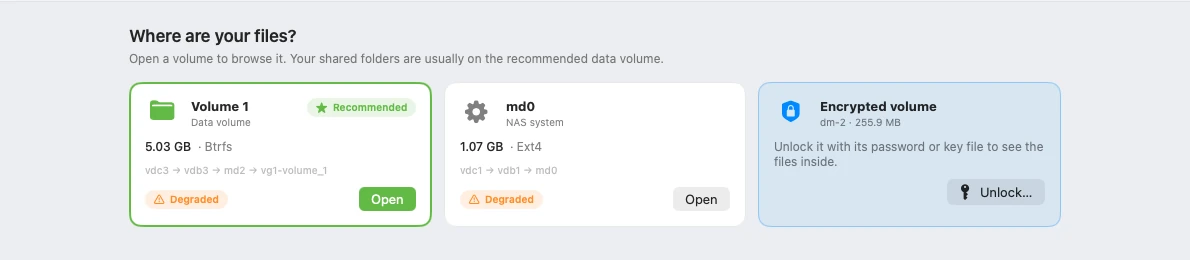
A Synology drive typically holds a system partition, a swap partition and data volumes. NAS Rescue marks only the one holding your shared folders as "Recommended," using the same name you see in DSM.

  • 1The data volume is marked "Recommended" and keeps its DSM name, "Volume 1," with file system and used space shown
  • 2System and swap partitions are sorted out automatically, so you won't open them by mistake
  • 3Encrypted volumes are listed separately and unlock read-only with a password
CrossDriver NAS Rescue (Synology / QNAP NAS data recovery for Mac) screenshot: Recommended data volume; System partitions set apart; Encrypted volumes can be unlocked
1Recommended data volume
2System partitions set apart
3Encrypted volumes can be unlocked
02Free preview

See your photos before you decide to buy

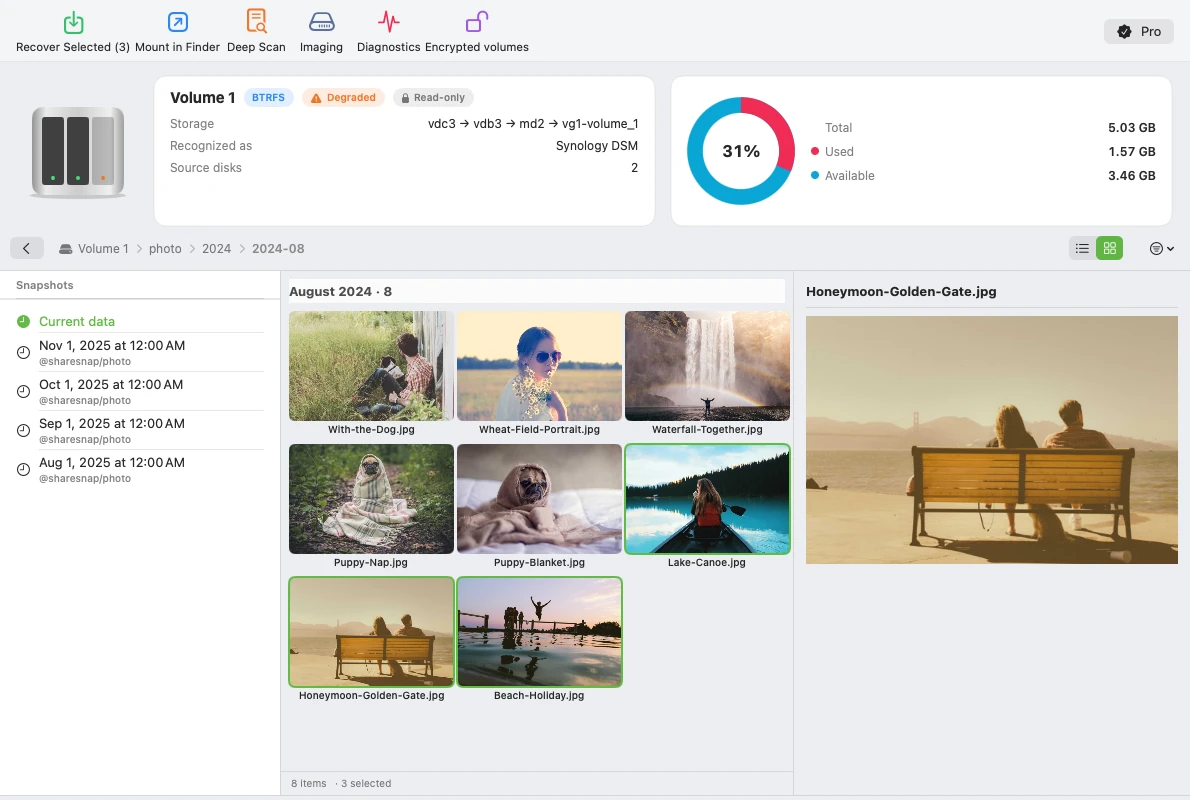
Scanning, browsing and previewing are always free. Open a photo, a contract or a video, make sure your files are really there, then upgrade to recover.

  • 1Clickable path to jump back to any parent folder
  • 2Photo wall grouped by month, with subfolders optionally included
  • 3Preview photos, RAW, PDF, Word, audio and video — content stays in memory and is never written to disk
  • 4Select files or folders and click "Recover Selected"
CrossDriver NAS Rescue (Synology / QNAP NAS data recovery for Mac) screenshot: Clickable path; Photo wall grouped by month; Free preview; Recover Selected
1Clickable path
2Photo wall grouped by month
3Free preview
4Recover Selected
03Snapshots

Deleted files by mistake? Go back to a snapshot

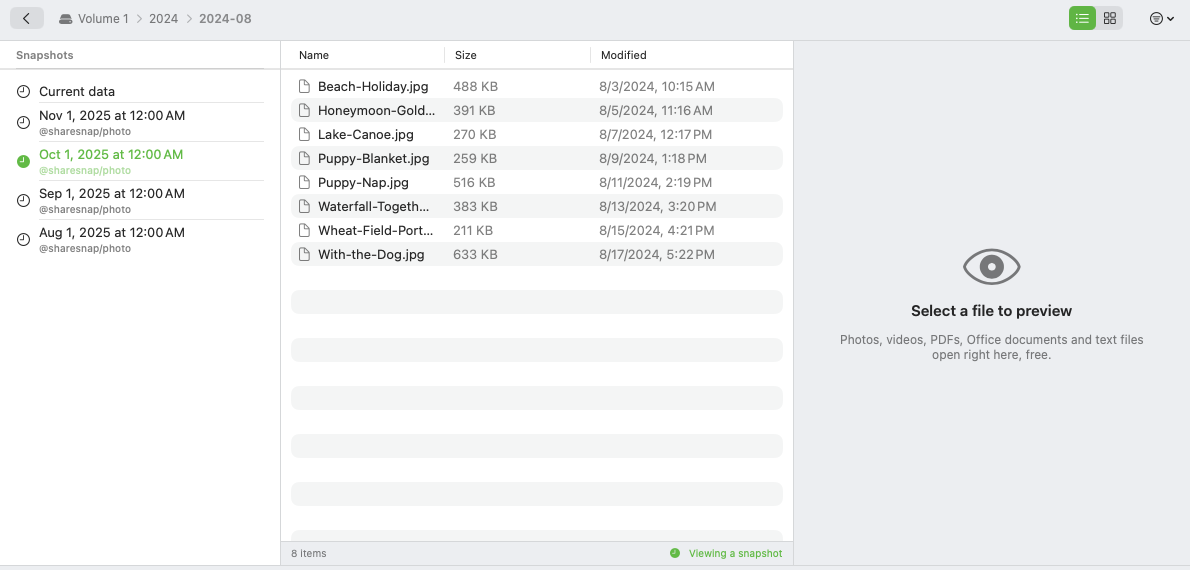
Snapshots on Synology Btrfs volumes are listed by time. Pick a date to see your folders as they were then — no need to fix the NAS first.

  • 1Detects Synology @GMT snapshots automatically and shows them in local time
  • 2Browse snapshots exactly like current data and recover directly

Also works with snapshots taken before a ransomware attack: snapshots are read-only and stay untouched during recovery.

CrossDriver NAS Rescue (Synology / QNAP NAS data recovery for Mac) screenshot: Snapshot timeline; Viewing files from October 1
1Snapshot timeline
2Viewing files from October 1
04Recovery

Every file verified, with a clear record of anything damaged

Recovery is more than "copying." NAS Rescue keeps track of every step, and unreadable areas won't stall the whole job.

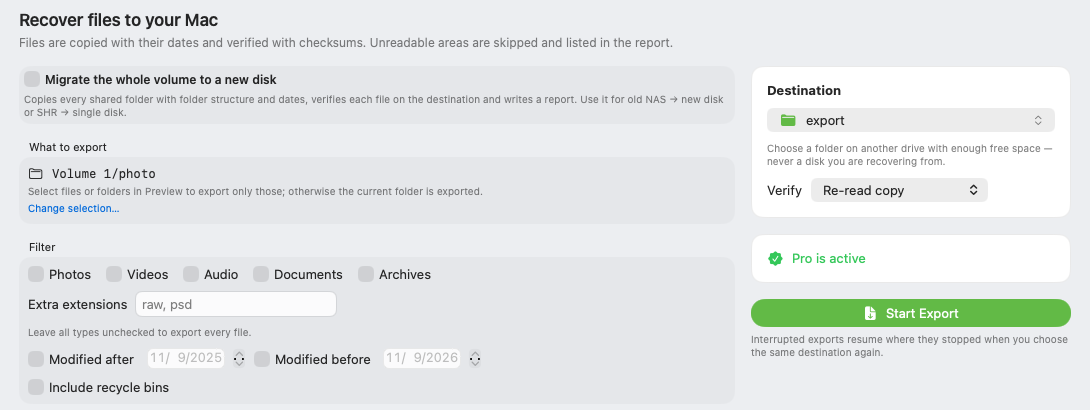
  • 1Filter by type (photos, videos, documents…) and modification date
  • 2SHA-256 read-back verification, or file-by-file comparison with the source
  • 3Bad areas are skipped automatically, zero-filled and logged in a report, with a full checksum list
  • 4If interrupted, choose the same destination to resume
CrossDriver NAS Rescue (Synology / QNAP NAS data recovery for Mac) screenshot: Filter by type; SHA-256 verification; Bad areas skipped and logged; Resume after interruption
1Filter by type
2SHA-256 verification
3Bad areas skipped and logged
4Resume after interruption
05Disk imaging

Drive showing warnings? Make a full copy first

Before scanning, NAS Rescue runs a health triage: it reads SMART data and measures actual read speed. If a drive is failing, it recommends imaging it first, then reads only from the image so the original drive isn't stressed further.

  • 1"Quick Copy" skips bad areas first, then "Retry Bad Areas" works through them slowly
  • 2Live heat map shows which areas have been read and which can't be
  • 3Start browsing files in the image before imaging finishes

Based on GNU ddrescue and resumable after interruption. For RAID, image each member disk separately.

1Quick copy first, then retry bad areas
2Live bad-area heat map
3Browse while imaging
06Encrypted volumes

Open encrypted volumes on your Mac, too

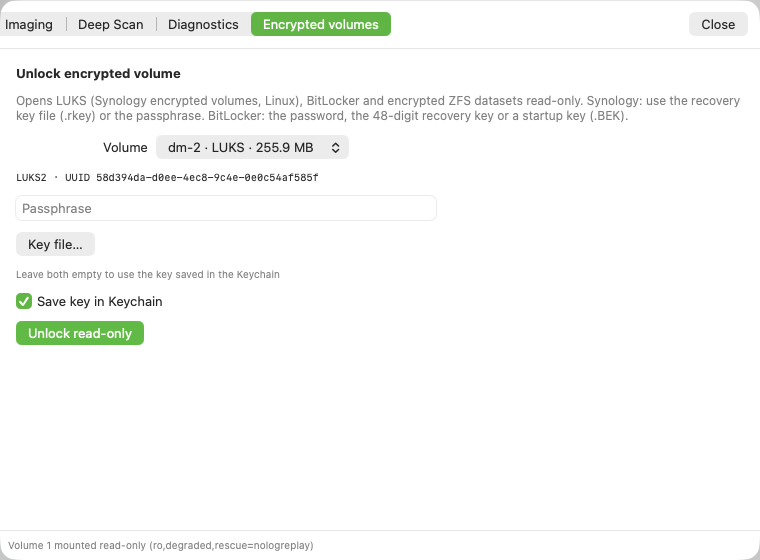
Synology encrypted volumes (LUKS), Windows BitLocker drives and TrueNAS encrypted datasets can all be unlocked read-only.

  • 1Detects encryption type and key protectors automatically
  • 2Supports passwords, Synology .rkey files, BitLocker 48-digit recovery keys and .BEK files
  • 3Save to Keychain to unlock automatically next time you connect

BitLocker drives protected only by TPM need the 48-digit recovery key once removed from the original PC.

CrossDriver NAS Rescue (Synology / QNAP NAS data recovery for Mac) screenshot: Synology encrypted volume (LUKS2); Password or .rkey recovery key file; Save to Keychain
1Synology encrypted volume (LUKS2)
2Password or .rkey recovery key file
3Save to Keychain
07Three layers of read-only protection

The last thing a rescue tool should do
is write to a failing drive

NAS Rescue reads your drives inside an isolated, lightweight Linux environment, with three locks between it and your Mac. If any lock isn't engaged, it stops before touching the disk.

🔒 Lock 1

On the Mac

Drives are opened read-only and handed to the rescue environment as read-only devices, so writes are blocked at the system level.

🔒 Lock 2

Rescue environment

RAID is assembled read-only, LVM is activated read-only and every mount is forced to ro; when "Force Assemble" is needed, changes go only to an in-memory overlay.

🔒 Lock 3

Interface

The app checks the access policy reported by the rescue environment every time and stops immediately if it isn't "read-only."

No kernel extension, no Recovery Mode, and no reduction in your Mac's system security.

08Pro

Open in Finder and use it like any other disk

With Pro, data volumes mount read-only in Finder, so any app can open the files directly.

  • 1Data volumes appear in the Finder sidebar; open files with the apps you already use
  • 2Mounted read-only, so mistakes can't change the original disk
  • 3Open Time Machine backups (.sparsebundle) inside the volume read-only

Pro also includes: full-volume migration (copies an entire volume with read-back verification, ideal for old NAS → new disk), btrfs restore (rescues files directly when Btrfs won't mount) and array rebuild (rebuilds md arrays on an overlay without writing to member disks). Diagnostics are free.

1Appears in the Finder sidebar
2Read-only mount
3Open Time Machine backups read-only
What we'll never do

Things NAS Rescue will never do to your drives

✕

Rebuild arrays

It never rebuilds or resyncs RAID on member disks. When "Force Assemble" or a rebuild with the original parameters is needed, changes go only to an in-memory overlay.

✕

Repair file systems

It never runs fsck, xfs_repair or btrfs check --repair on the original disks. Disks are attached as read-only devices, and no journal is written back when mounting.

✕

Rewrite disk metadata

It never writes superblocks, partition tables or LVM metadata; encrypted volumes are unlocked read-only, too.

✕

Upload your data

File names, paths and contents never leave your Mac, and everything works offline.

What's supported

How far support goes for your NAS storage

We spell out what we can read — and what we can't yet. Not sure? Scan with the free version first; the results will tell you.

Detection & assemblyBrowse & previewRecovery & exportNotes
Synology SHR / SHR-2✓✓✓Including degraded arrays
Synology classic RAID 0/1/5/6/10✓✓✓
Synology Btrfs snapshots✓✓✓Browse @GMT snapshots by time
Synology encrypted volumes (LUKS)✓✓✓Password or .rkey recovery key
Synology encrypted shared folders (eCryptfs)Not yet supported——
QNAP QTS storage poolsTo be testedTo be testedTo be testedTest matrix in progress
QNAP QuTS hero (ZFS)✓✓✓Read-only pool import
TrueNAS (ZFS)✓✓✓Including natively encrypted datasets
Unraid arrays✓✓✓Each data disk read separately (XFS / Btrfs)
UGREEN UGOS✓✓✓
DIY Linux (mdadm / LVM)✓✓✓Ext4 · XFS · Btrfs

This support table is an illustrative mockup; the final release will follow the test matrix.

Works with

Which Macs and NAS drives work

Supported Macs

Models
MacBook Air, MacBook Pro, iMac, Mac mini, Mac Studio, Mac Pro
Chip
Apple silicon (the entire M1–M6 families, including Pro, Max and Ultra) and Intel processors
System
macOS 12 Monterey, 13 Ventura, 14 Sonoma, 15 Sequoia, 26 Tahoe and later

Compatible drives

Drives
3.5- and 2.5-inch NAS hard drives and SSDs, such as Seagate IronWolf, WD Red, Toshiba N300 and the Synology HAT series
Connection
SATA-to-USB cables, drive docks and multi-bay enclosures
Destination disk
An external drive or your Mac's internal disk with enough space for the recovered files

Compatible NAS

Synology
DS218+, DS220+, DS224+, DS920+, DS923+ and other models using SHR / RAID
Other brands
QNAP, UGREEN, Unraid, TrueNAS, DIY Linux NAS
Notes
It depends on the storage layout, not the NAS model — see the support table above

If a drive makes strange noises, won't spin up or has other physical faults, take it to a professional data recovery service.

Compare

Compared with the official Ubuntu method

Synology's official method: find a PC, install all the drives, boot from an Ubuntu USB stick, then type a series of commands.

NAS RescueOfficial Ubuntu method
Hardware neededYour Mac + USB drive dockA PC with enough drive bays + USB stick
Works on Mac✓—
WorkflowFour-step wizardCommand line; you identify device paths yourself
Writes to drivesStrictly read-onlyForce assembly rewrites array metadata
Compatibility with newer systemsBuilt-in engine, works out of the boxRequires a specific older Ubuntu; newer versions may fail to mount
Encrypted volumesEnter the password in the wizardManual cryptsetup; key must be decoded first
Preview & verificationBuilt-in preview, SHA-256 verified exportCopy and check it yourself
Compare

Compared with other recovery options

NAS RescueWindows recovery softwareCross-platform pro recovery softwareData recovery company
Works on Mac✓—✓—
SHR, Btrfs, ZFS✓Varies by product✓✓
Synology encrypted volumes✓Varies by productOften needs a higher edition✓
Free preview before buying✓✓Limited exportQuote after evaluation
SHA-256 verified export✓———
Mount in Finder✓———
Failing-drive imaging & heat map✓Varies by productVaries by product✓
Physical drive failure———✓

When a drive has a physical fault, no software can help — contact a professional data recovery service directly.

09Pricing

See it first, then pay

Scanning, browsing and previewing are always free. Upgrade to recover once you've confirmed your files are there.

Free

US$0

  • Detect NAS, rebuild RAID / LVM / ZFS
  • Health triage & diagnostics
  • Browse all folders and snapshots
  • Preview photos, documents, audio & video
Free Download
Recommended

NAS Rescue Pro

US$69.95 Lifetime license · 1 year US$39.95

  • Everything in Free
  • Unlimited, verified file recovery to your Mac
  • Mount in Finder · Full-volume migration
  • Disk imaging · Encrypted volume unlock
  • btrfs restore · Array rebuild
Buy Pro

Complete Bundle

US$119.95 Lifetime license · 1 year US$69.95

  • NAS Rescue Pro
  • All in One Pro
  • One license, five apps
Buy the Bundle

Each license covers 1 Mac and can be deactivated in the app to move to another. Works offline, no account required. After-sales & refund policy. The Mac App Store version supports disk image files only; to read drives directly, use the version from our website.

10Data never leaves your Mac

Your files stay on your Mac

0

bytes written to the original disks

Three read-only locks; repair operations write only to an in-memory overlay or a working directory.

0

bytes uploaded

File names, paths and contents never leave your Mac, and everything works offline.

✓

Every step traceable

Key operations are written to an audit log, and each recovery produces a per-file report and SHA-256 checksum list.

20

interface languages

20 languages, including 简体中文, 繁體中文, English, 日本語, 한국어, Deutsch, Français, Español, Português and Русский. Native on Apple silicon and Intel.

FAQ

Q&A

Can a Mac read a drive taken out of a Synology NAS?

Not by plugging it in directly: Synology data usually sits on SHR / RAID and LVM, so macOS says "The disk you attached was not readable by this computer." Click "Ignore" and never initialize it. Connect all drives from the same storage pool and NAS Rescue rebuilds the array read-only, finds data volumes such as "Volume 1," and lets you browse and preview for free. For detailed steps, see Reading Synology drives on a Mac.

Can it read drives from the DS920+, DS220+, DS923+ and other Synology models?

It depends on the storage layout, not the model: SHR, classic RAID, Btrfs and Ext4 volumes can all be rebuilt read-only, including Synology encrypted volumes; encrypted shared folders (eCryptfs) aren't supported yet.

Can it recover QNAP drives?

QuTS hero (ZFS) storage pools can be imported read-only and recovered. QTS storage pools are still being tested — scan with the free version first, and the results will tell you whether they can be read.

Storage pool crashed but the drives are fine. Is my data lost?

Usually not right away. A crashed pool usually means the array or file-system metadata is damaged, while most of the file data is still on the drives. Until you know the cause, don't initialize the drives, recreate the pool, or reinstall the system. Take the drives out, connect them to a Mac, and let NAS Rescue rebuild the array read-only so you can browse and preview for free, then recover once you see your files. If a drive clicks or isn't detected, take it to a professional recovery lab.

My NAS motherboard died / it won't boot. Is my data still there?

Very likely. Motherboard, power supply and system failures don't affect the data on the drives. Remove all the drives in order, connect them to your Mac and scan.

What if DSM won't start after an update?

Don't reinstall or initialize yet. Connect the drives to your Mac, scan and preview with the free version, and confirm your files are there.

One disk in my RAID 1 failed. Can I still read it?

Yes. RAID 1 is readable as long as one good disk remains; RAID 5 and SHR can be missing one disk, and RAID 6 and SHR-2 can be missing two.

Ubuntu says "can't read superblock." Is there any hope?

It doesn't necessarily mean the data is damaged — it may just be the kernel version, mount options or a missing disk. NAS Rescue tries progressively more lenient read-only mount methods, and if Btrfs still won't mount, it can rescue files directly with btrfs restore. Try a free scan first.

TrueNAS says "cannot import pool." What should I do?

NAS Rescue imports ZFS pools read-only without modifying any pool metadata, so you can scan and preview first.

What hardware do I need?

A SATA-to-USB adapter or drive dock for each NAS drive (multi-bay docks work too), plus a destination disk with enough space for the recovered files.

When should I go to a professional?

If a drive makes strange noises, won't spin up or keeps disconnecting, or several drives have physical faults at once, stop powering them and contact a professional data recovery service.

Can I still recover with a disk missing?

RAID 1/5/6/10 and SHR can still be read with up to the allowed number of disks missing. If the array is out of sync, you can try "Force Assemble" — changes happen only in an in-memory overlay and are never written to the drives.

Could it damage my drives or NAS configuration?

No. Drives stay read-only throughout and NAS Rescue writes no data, so putting the drives back in the original NAS afterward isn't affected.

Do I need to install a kernel extension or disable SIP?

No. NAS Rescue uses the Virtualization framework built into macOS to run an isolated, lightweight Linux environment that reads the drives.

Which NAS systems are supported?

Synology (SHR, Btrfs, Ext4), QNAP (QTS, and ZFS on QuTS hero), UGREEN, Unraid, TrueNAS, and DIY Linux NAS using mdadm, LVM, Btrfs, Ext4, XFS or ZFS.

How is it different from CrossDriver Ext4 / XFS?

The Ext4 and XFS apps are for everyday reading and writing of single, ordinary disks. NAS Rescue never writes; it exists to recover files. It rebuilds NAS RAID, LVM, and ZFS read-only first, and it's also the tool for single hard drives, USB sticks, and SD cards that won't open, ask to be formatted, or have bad sectors.

What's the difference between the website version and the Mac App Store version?

Because of App Store sandbox restrictions, the Mac App Store version can only open disk image files; the website version can read drives directly, read SMART data and create disk images.

If the drives are still there, so is a chance for your files

Download NAS Rescue and check for free whether your files are still there.

Download for Mac — Free Scan & Preview

macOS 12 or later · Apple silicon & Intel · Privacy Policy