
CrossDriver OmniNew generation · Six formats · 7-day Pro trial

Windows and Linux drives,
all in one app

NTFS, Ext4, XFS, Btrfs, F2FS and ZFS — whatever you plug in, it opens. No juggling separate tools, no remembering which drive uses which format.

Read & write 6 formatsFormat to 6 file systemsOne license for all

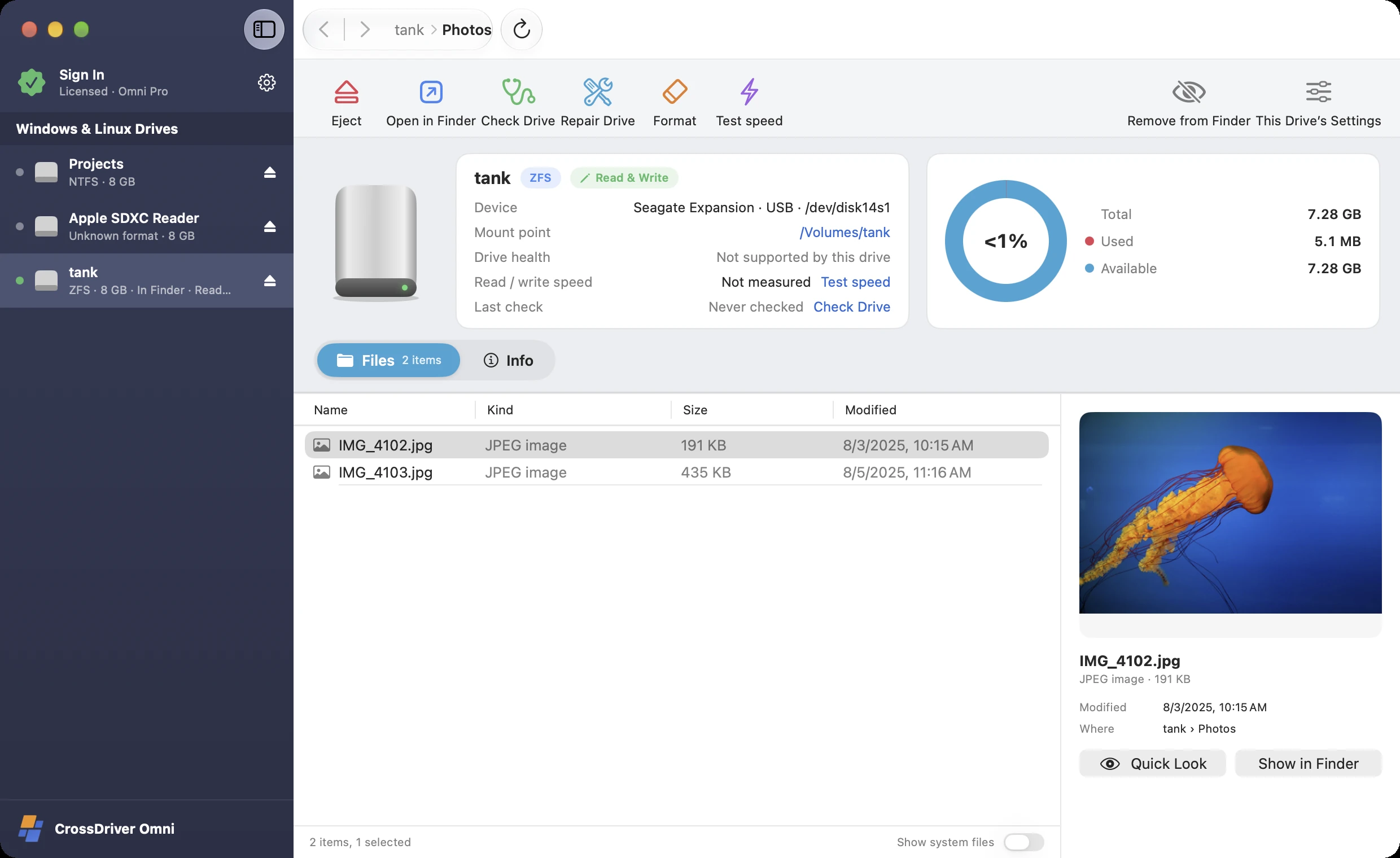
CrossDriver Omni (NTFS / Ext4 / XFS / Btrfs / ZFS for Mac) screenshot: Windows and Linux drives in one sidebar; Automatic format detection; Open in Finder with one click; Instant preview
1Windows and Linux drives in one sidebar
2Automatic format detection
3Open in Finder with one click
4Instant preview
CrossDriver OmniWindows edition · Complete Bundle · 7-day Pro trial

Mac and Linux drives,
all in one app

APFS, HFS+, Time Machine, Ext4, XFS, Btrfs, plus ZFS and F2FS: plug in anything and it opens. The sidebar groups "Mac disks" and "Linux disks", and the toolbar follows the selected drive. Its Pro license is the Complete Bundle: for Mac Disks and for Linux Disks are unlocked too.

Mac drives + Linux drivesPlus ZFS, F2FSOne license, three apps

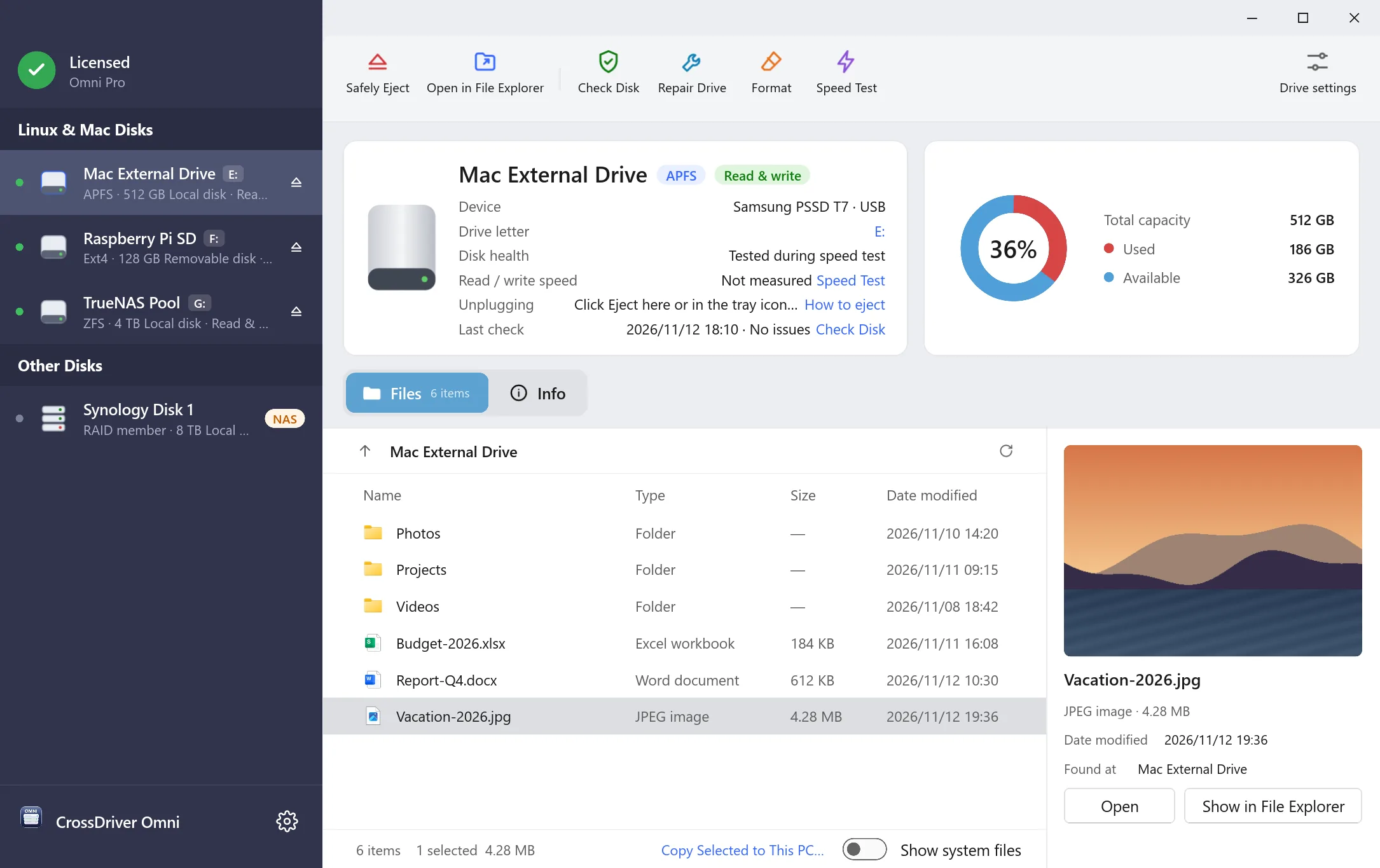
CrossDriver Omni (APFS, Ext4, XFS, Btrfs, ZFS for Windows) screenshot: Mac drives and Linux drives grouped; Only Omni supports ZFS; One license (Complete Bundle); Instant preview
1Mac drives and Linux drives grouped
2Only Omni supports ZFS
3One license (Complete Bundle)
4Instant preview

Supported formats

NTFSExt4 / Ext3 / Ext2XFSBtrfsF2FSZFSBitLockerLUKS
01Read & write

Every drive, whatever the format, in one window

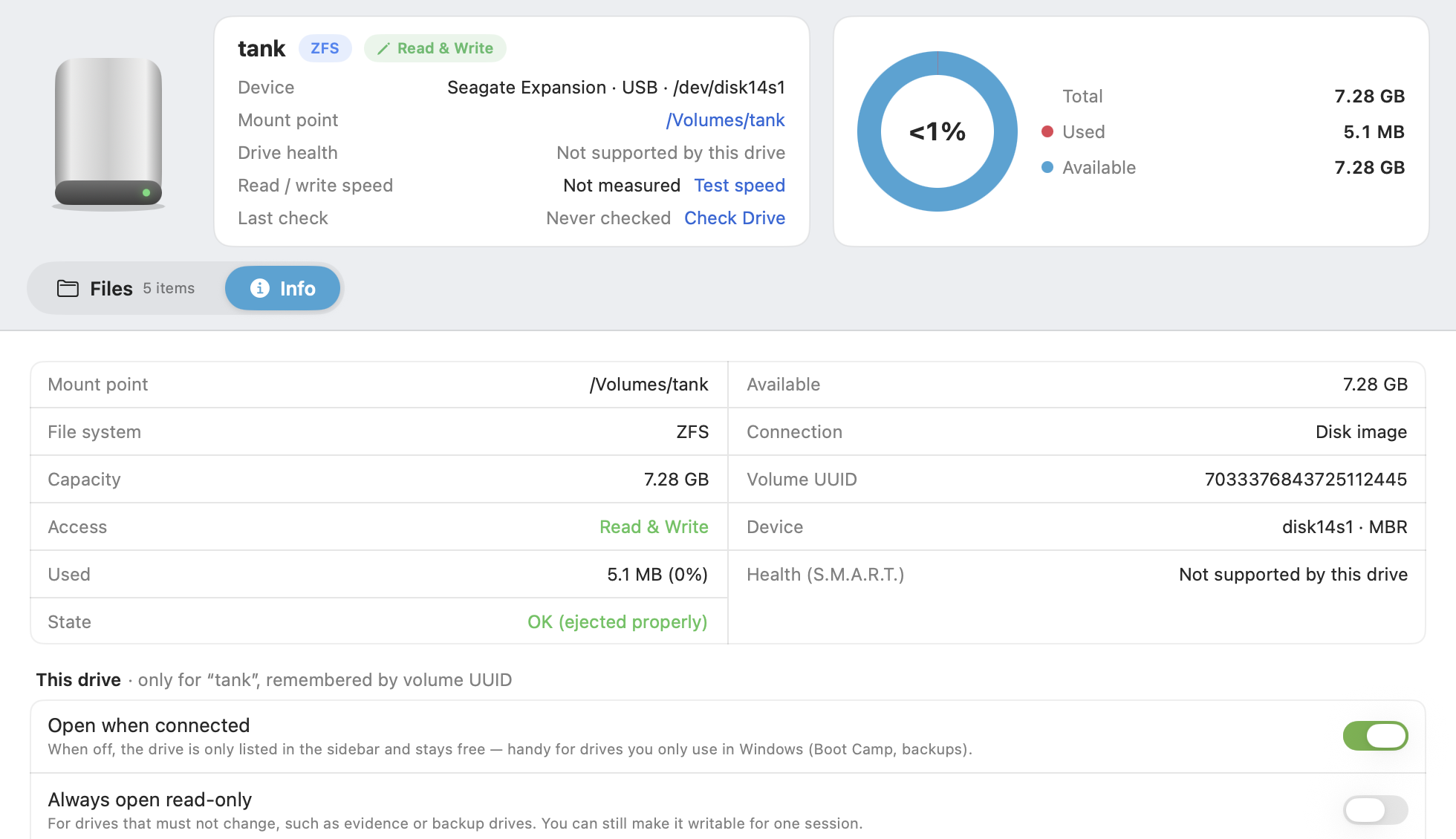
A Windows external drive, a Raspberry Pi SD card, an XFS server disk, a Linux Btrfs backup drive, a ZFS data disk — all lined up in the sidebar, ready with one click.

  • 1Detects each drive's format automatically
  • 2Btrfs, F2FS and ZFS are supported only in Omni
  • 3Click "Eject" so changes are written before you unplug
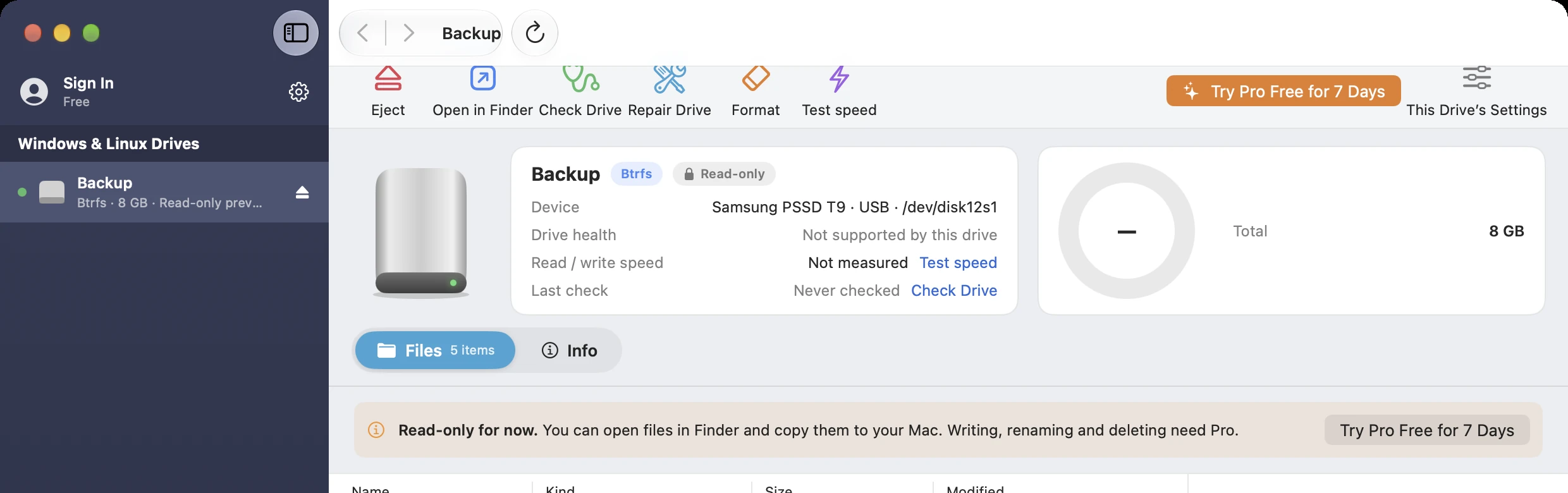
CrossDriver Omni (NTFS / Ext4 / XFS / Btrfs / ZFS for Mac) screenshot: Automatic format detection; Btrfs, F2FS and ZFS are supported only in Omni; Safe eject
1Automatic format detection
2Btrfs, F2FS and ZFS are supported only in Omni
3Safe eject
02Pro

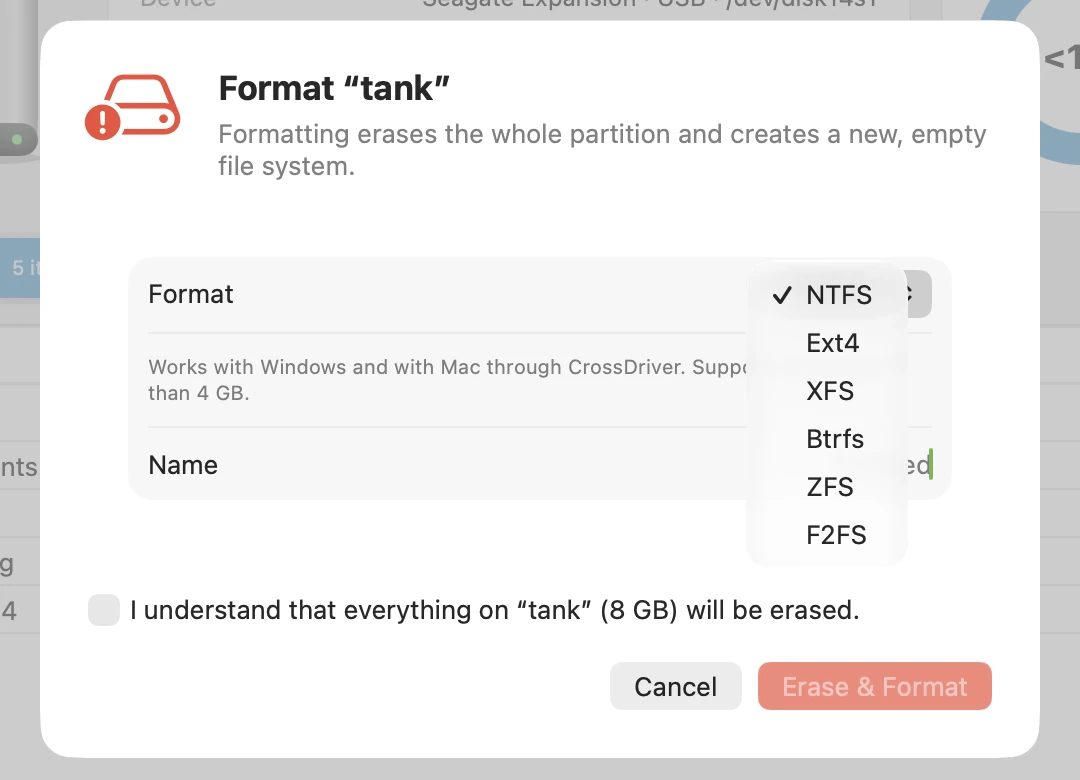
Format as NTFS, Ext4, XFS, Btrfs, ZFS or F2FS

Prepare drives for a Windows PC, Raspberry Pi, server or Android device — all from your Mac.

  • Choose from NTFS, Ext4, XFS, Btrfs, ZFS and F2FS, with what each one is for shown alongside
  • ZFS creates a new single-disk pool with a name you choose
  • Check to confirm before erasing
CrossDriver Omni (NTFS / Ext4 / XFS / Btrfs / ZFS for Mac) screenshot: Six formats to choose from; Check to confirm before erasing
1Six formats to choose from
2Check to confirm before erasing
03Encryption

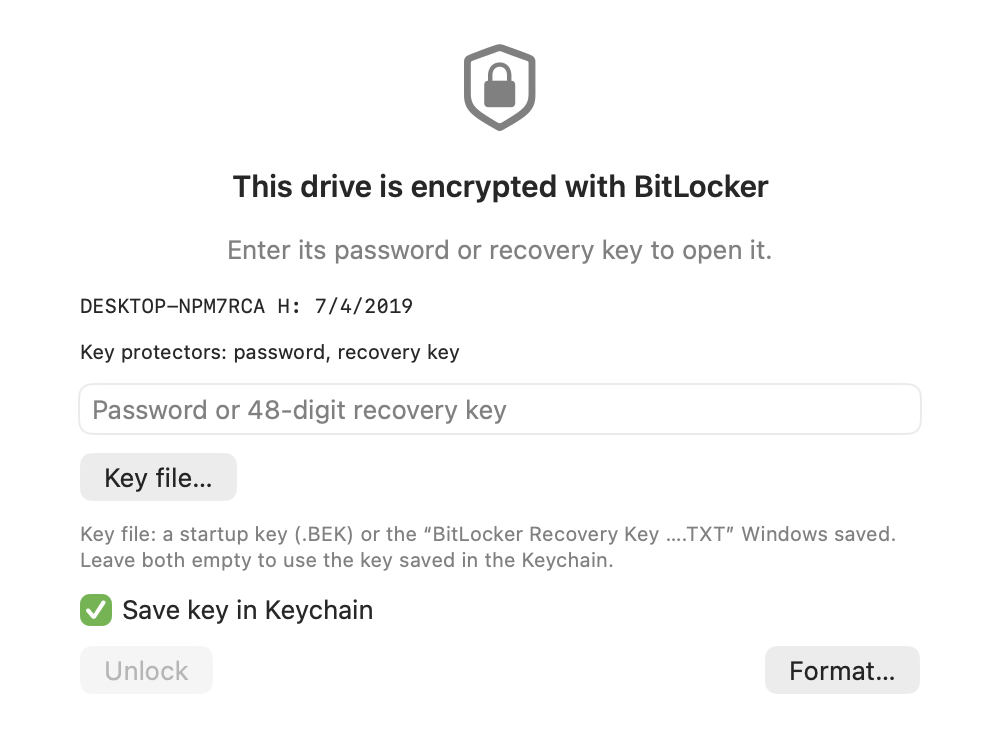
Unlocks both BitLocker and LUKS encrypted drives

Enter the password to unlock Windows BitLocker and Linux LUKS encrypted drives, then read and write. Unlocking is a Pro feature; try it free for 7 days first.

  • 1Detects BitLocker and key protectors
  • 2Password, 48-digit recovery key or key file
  • 3Can be saved to Keychain
CrossDriver Omni (NTFS / Ext4 / XFS / Btrfs / ZFS for Mac) screenshot: Detects BitLocker and key protectors; Password or 48-digit recovery key; Save to Keychain, unlock automatically next time
1Detects BitLocker and key protectors
2Password or 48-digit recovery key
3Save to Keychain, unlock automatically next time
04Tools

Check, repair and format: all on the Info page

Built-in check and repair for NTFS, Ext4 and XFS — no Terminal required.

  • 1Check (free) and repair (Pro)
  • 2Settings for each drive: open automatically, read-only, show in Finder
CrossDriver Omni (NTFS / Ext4 / XFS / Btrfs / ZFS for Mac) screenshot: Check & repair; Settings for each drive
1Check & repair
2Settings for each drive
Performance

Performance testing in progress

We're testing a traditional user-space tool, CrossDriver New Generation and the Kernel Edition on real Macs and disks. Once testing is complete, we'll publish the data, methodology and raw results here; until then, we won't quote any speed multiples.

05Compare

How is Omni different from the single-format apps?

Omni includes everything in the three single-format apps, plus support for Btrfs, F2FS and ZFS.

NTFSExt4XFSOmni
NTFS read/write✓——✓
Ext2 / Ext3 / Ext4 read/write—✓—✓
XFS read/write——✓✓
Btrfs read/write———✓
F2FS read/write———✓
ZFS read/write———✓
FormatNTFSExt4XFSNTFS · Ext4 · XFS · Btrfs · ZFS · F2FS
Unlock encrypted disksBitLockerLUKSLUKSBitLocker · LUKS · ZFS native encryption
Pro license works withNTFSExt4XFSAll four apps
Works with

Works with mainstream Macs and drives of every brand

NTFS, Ext4, XFS, Btrfs, F2FS and ZFS all open in Finder, regardless of drive brand or capacity.

Supported Macs

Models
MacBook Air, MacBook Pro, iMac, Mac mini, Mac Studio, Mac Pro
Chip
Apple silicon (the entire M1–M6 families, including Pro, Max and Ultra) and Intel processors
System
macOS 12 Monterey, 13 Ventura, 14 Sonoma, 15 Sequoia, 26 Tahoe and later

Supported disks

Formats
NTFS, Ext2 / Ext3 / Ext4, XFS, Btrfs, F2FS, ZFS (single-disk pools)
Type
External hard drives, portable SSDs, USB flash drives, SD / microSD cards, and SATA / NVMe drives in an enclosure
Brands
Works with every brand, such as Seagate, WD (Western Digital), Toshiba, Samsung T7 / T9, SanDisk, Kingston, Lexar, LaCie, UGREEN, ORICO and more

Common uses

Mixed Windows and Linux
Open Windows external drives and Linux disks in one app
Linux desktop
Btrfs disks, the default on Fedora, openSUSE and others
ZFS
Single-disk ZFS pools created by TrueNAS, Proxmox and others
Android & embedded
F2FS memory cards and partitions

For NAS storage pools spanning multiple disks, use Data Recovery NAS.

06Next-gen engine

No kernel extensions.
No changes to your Mac's security settings.

The new-generation CrossDriver reads and writes NTFS, Ext4, XFS, Btrfs, F2FS and ZFS disks using native Linux file system drivers inside an isolated, lightweight Linux environment. Your Mac keeps its factory security level.

✓ No kernel extension

Works right after install

No Recovery mode, no lowering security, no restart — and no broken drivers after a macOS update.

✓ Isolated

A dedicated engine for your disk

The engine only sees the disk you open, fully isolated from macOS and your other disks.

✓ Safe eject

Everything's written before you unplug

When you click "Eject", the engine writes all changes back to the disk before releasing it, so unplugging won't lose data.

All editions require macOS 12 or later and run natively on Apple silicon and Intel.

07Pricing

One license, four apps

An Omni Pro license also covers CrossDriver NTFS, Ext4 and XFS. Try Pro free for 7 days in the app.

Free

US$0

  • Detects and opens all six formats automatically
  • Read-only access in Finder
  • Browse, preview and copy to your Mac
  • Check Disk
Free download · Includes 7-day Pro trial
Recommended

Omni Pro

US$79.95 Lifetime license · 1 year US$49.95 · 1 month US$24.95

  • Read & write all six formats in Finder
  • Format as NTFS, Ext4, XFS, Btrfs, ZFS, F2FS
  • Repair file systems
  • Unlock BitLocker and LUKS encrypted drives, read & write
  • License covers the NTFS / Ext4 / XFS apps
Buy Pro

Data Recovery NAS Pro

US$69.95 Lifetime license · 1 year US$39.95

  • Everything in Data Recovery Pro
  • RAID / LVM / ZFS from Synology, QNAP, and other NAS
  • One license, two apps
Learn about Data Recovery NAS

Each license covers 1 Mac and can be deactivated in the App and moved to another Mac — no account needed. Once activated it works offline: the App goes online once every 30 days to renew the license automatically (no payment involved), with a further 14-day grace period when offline. A lifetime license includes free updates to all future versions of this App, including major versions; 1-year and 1-month licenses are never charged automatically — the App reminds you to renew before they expire. After-sales and refund policy. Each code can be moved to another computer 3 times on your own; after that, contact support.

FAQ

Q&A

I already bought NTFS Pro. Can I upgrade to Omni?

Yes. If you've purchased the NTFS, Ext4 or XFS app, contact support and we'll send you a discount code so you only pay the difference.

Can I format drives as Btrfs, F2FS and ZFS?

Yes. Omni Pro can format a drive as NTFS, Ext4, XFS, Btrfs, ZFS or F2FS; choosing ZFS creates a new single-disk pool on the entire drive.

How do I open a Btrfs or ZFS drive on a Mac?

macOS doesn't support Btrfs or ZFS. Omni detects the format automatically: Btrfs drives open directly, and for ZFS it imports the pool on the disk and mounts its datasets. The free version gives read-only access in Finder; Pro adds read-write. If a multi-disk NAS storage pool has failed, use Data Recovery NAS for read-only recovery.

Can I open a single-disk ZFS pool from TrueNAS or Proxmox on a Mac?

Yes. Omni imports the ZFS pool on the disk and mounts its datasets. Read-only in the free version; read-write with Pro.

How complete is ZFS support?

You can import ZFS pools and read and write their datasets, with support for ZFS native encryption. If a multi-disk pool on a NAS has failed, use Data Recovery NAS for read-only recovery.

Does it work on M1–M6 Macs? Do I need to disable SIP or install a kernel extension?

Yes, it works — and no, you don't. CrossDriver runs natively on Apple silicon Macs such as M1–M6 as well as Intel Macs, on macOS 12 Monterey, 13 Ventura, 14 Sonoma, 15 Sequoia, 26 Tahoe and later. It uses macOS's built-in virtualization framework to run an isolated, lightweight engine that reads and writes your disks — no kernel extension, no disabling SIP, no changes to any security settings, and no restart after installing.

Can I try Pro first?

Yes. CrossDriver NTFS, Ext4, XFS and Omni all offer a free 7-day Pro trial in the app — once per Mac, no payment details required. After the trial ends, your disks remain accessible read-only and your files are unaffected.

How is it different from the Kernel Edition on crossdriver.com?

The Kernel Edition is NTFS For Mac, Ext4 For MAC and XFS For MAC on crossdriver.com: it runs as a kernel extension and requires lowering system security on Apple silicon Macs. The new generation doesn't rely on kernel extensions, reads and writes through the Linux kernel's own drivers, gives read-only access in Finder even in the free version, and Pro has repair, formatting and encrypted-disk unlocking built in, with no extra plug-in to buy. Both generations cost the same and share one license: buy once and use both the Kernel Edition and the new generation on the same Mac. If you've already bought the Kernel Edition, please refer to the Kernel Edition product page.

Supported formats

APFSHFS+Time MachineExt4XFSBtrfsZFSF2FSLUKSEncrypted APFS
01Read & write

Every drive, whatever the format, in one window

A Mac photo drive, a Raspberry Pi SD card, an Unraid XFS drive, a TrueNAS single-disk ZFS pool: the sidebar groups them under "Mac disks", "Linux disks" and "Other disks" — click one and use it.

  • 1Mac drives and Linux drives grouped
  • 2Only Omni supports ZFS and F2FS
  • 3NAS member drives go to Data Recovery NAS
  • 4Instant preview
CrossDriver Omni (APFS, Ext4, XFS, Btrfs, ZFS for Windows) screenshot: Mac drives and Linux drives grouped; Only Omni supports ZFS and F2FS; NAS member drives go to Data Recovery NAS; Instant preview
1Mac drives and Linux drives grouped
2Only Omni supports ZFS and F2FS
3NAS member drives go to Data Recovery NAS
4Instant preview
Everything from both apps

The toolbar follows the selected drive

🕘

Mac drives: Time Machine

Browse by backup point in time, with "Previous versions" in File Explorer; encrypted APFS unlocks with its password.

✎

Mac drives: APFS write switch

Same as for Mac Disks: experimental, read-only by default, turned on per drive.

🛠

Linux drives: check and repair

One-click check and repair for Ext4 and XFS, remounted automatically afterwards; LUKS-encrypted drives unlock with their password.

⇄

When a dedicated app is installed

With both for Mac Disks and Omni installed, Mac drives go to for Mac Disks first; with only Omni installed, every Mac / Linux drive goes to it.

Compare

How is Omni different from the single apps?

Omni includes everything in for Mac Disks and for Linux Disks, and also supports ZFS and F2FS.

for Mac Disksfor Linux DisksOmni
Read APFS, HFS+✓—✓
APFS writing (experimental)✓—✓
Time Machine backups✓—✓
Read & write Ext4, XFS, Btrfs—✓✓
ZFS, F2FS——✓
Unlock encrypted disksEncrypted APFSLUKSEncrypted APFS · LUKS
Pro license works withfor Mac Disksfor Linux DisksAll three apps

Windows reads and writes NTFS, FAT32 and exFAT itself, so Omni leaves them alone. Omni for Mac also includes NTFS because macOS can't write NTFS; the Windows version doesn't need it.

Works with

Works with mainstream PCs and drives of every brand

PCs

System
Windows 10 2004 (19041) and later, Windows 11; Home, Pro and Education are all supported
Processor
x64 (Intel, AMD) and ARM64 (e.g. Snapdragon); one installer that picks the right one when installing
Type
Desktops, laptops, mini PCs; running in a virtual machine or cloud desktop needs nested virtualization

Supported disks

Formats
APFS, HFS+, Ext2 / Ext3 / Ext4, XFS, Btrfs, ZFS (single-disk pools), F2FS, plus LUKS and encrypted APFS
Type
External hard drives, portable SSDs, USB flash drives, SD / microSD cards, and SATA / NVMe drives in an enclosure
Brands
Works with every brand, such as Seagate, WD (Western Digital), Toshiba, Samsung T7 / T9, SanDisk, Kingston, Lexar, LaCie, UGREEN, ORICO and more

Common uses

Mac and Linux together
One app opens Mac drives and Linux drives
ZFS
Single-disk ZFS pools created by TrueNAS, Proxmox and others
Linux desktop
Btrfs disks, the default on Fedora, openSUSE and others
Android & embedded
F2FS memory cards and partitions

For NAS storage pools spanning multiple disks, use Data Recovery NAS.

How it works

No kernel driver:
Windows' own Virtual Machine Platform

CrossDriver reads and writes all kinds of Mac and Linux drives with native Linux file system drivers inside an isolated, lightweight Linux virtual machine, then hands the volumes to File Explorer as drive letters. The virtual machine runs on Windows' built-in Virtual Machine Platform; no kernel driver is installed.

✓ No kernel driver

A built-in Windows component

Just turn on Windows' built-in Virtual Machine Platform and restart once the first time. Windows Home has it too.

✓ One engine

One virtual machine, however many apps

All five apps share one background service and one virtual machine: no fighting over drives and resources used only once. When no drive needs serving, the virtual machine stops by itself.

✓ Safe eject

Everything's written before you unplug

Click "Safely eject" in the app or the taskbar tray: the engine first writes every change back to the disk, then tells you it's safe to unplug.

Requirements: Windows 10 2004 (19041) or later, x64 and ARM64, virtualization enabled in the BIOS. When Windows itself runs in a virtual machine, nested virtualization must be turned on.

Pricing

One license, three apps

Omni Pro is the Windows Complete Bundle: it also unlocks for Mac Disks and for Linux Disks. Pro can be tried free for 7 days in the app.

Free

US$0

  • Detects and opens every format automatically
  • Read-only access in File Explorer
  • Browse, preview, copy to your PC
  • Check Disk
Free download · Includes 7-day Pro trial
Recommended

Omni Pro (Complete Bundle)

US$49.95 Lifetime license · 1 year US$29.95 · 1 month US$14.95

  • Read & write Ext4, XFS, Btrfs, ZFS, F2FS
  • APFS / HFS+ writing (experimental, once available)
  • Repair and format
  • Unlock LUKS-encrypted disks
  • Also unlocks for Mac Disks and for Linux Disks
Buy Pro

Data Recovery NAS Pro

US$59.95 Lifetime license · 1 year US$34.95

  • Read-only recovery of NAS RAID / SHR / LVM / ZFS
  • Includes everything in Data Recovery
  • Recovery apps aren't in the Complete Bundle; buy them separately
Learn about Data Recovery NAS

Each license is for 1 PC and can be deactivated in the app to move it to another; works offline, no account needed. Lifetime licenses get free updates for life, including future major versions. Prices are in US dollars, purchased on crossdriver.com; Mac and Windows licenses are separate. After-sales and refund policy. Each code can be moved to another computer 3 times on your own; after that, contact support.

FAQ

Q&A

How do Omni and the Complete Bundle relate?

The Windows Complete Bundle is Omni Pro: buy it and Omni, for Mac Disks and for Linux Disks are all unlocked. Data Recovery and Data Recovery NAS aren't in the Complete Bundle and are bought separately.

How do I open a ZFS drive on Windows?

Windows doesn't support ZFS. Omni imports the single-disk ZFS pool on the drive and mounts its datasets, which appear in File Explorer as drive letters; read-only in the free edition, read-write with Pro. If a multi-disk NAS pool has failed, recover it read-only with Data Recovery NAS.

With both for Mac Disks and Omni installed, which app gets the drive?

The dedicated app comes first: Mac drives go to for Mac Disks, Linux drives to for Linux Disks (if installed). You can also set "Open with this app when plugged in" in each drive's settings; all CrossDriver apps share this setting.

Why isn't NTFS supported?

Windows reads and writes NTFS, FAT32 and exFAT itself, so CrossDriver isn't needed. If files on such a drive were deleted or the drive was formatted, scan it with Data Recovery.

Why do I have to restart the first time?

CrossDriver runs the engine that reads and writes drives on Windows' built-in Virtual Machine Platform component. It's off by default; the installer or the first-launch page walks you through turning it on, after which one restart is needed — and never again. Steps: Turn on Virtual Machine Platform.

Does it install a kernel driver?

No. CrossDriver installs no file system driver or any other kernel driver: drives are read and written by an isolated, lightweight Linux virtual machine and then appear in File Explorer as drive letters. The background service only starts when a CrossDriver app needs it, and uninstalling the last CrossDriver app removes the service, the tray helper and the virtual machine image together.

Do the drive letters stay after I close the app?

Yes. After you close the app, the drives it opened stay available through the background service and keep their drive letters; before unplugging, click "Safely eject" in the CrossDriver menu of the taskbar tray.

Is "Disconnect" on a network drive in File Explorer the same as ejecting?

No. CrossDriver's drive letters appear as network locations; before unplugging, click "Safely eject" in the app or tray menu: the engine first writes changes back to the disk, then tells you it's safe to unplug.

Can I try Pro first?

Yes. for Mac Disks, for Linux Disks and Omni all let you try Pro free for 7 days in the app. When the trial ends the drives remain readable and your files are unaffected.

One app to open every drive

Download CrossDriver Omni and open your drives for free.

macOS 12 or later · Apple silicon & Intel · Privacy Policy · Pricing · Open-Source Licenses

Downloads are counted anonymously; no personal information is recorded.